You have possibly already seen some tutorials out there on how to use LM Studio. And what makes this tutorial different from the others? And I’ll tell you up front, the difference is that this one is written by me (😁), also because these days you can ask CHATGPT that and it will probably answer you faster than I will.
But the idea is that we — both me and you — can learn a bit about how to use the LLM tool locally and understand the system’s basic operation.
First of all, you should download LMStudio. When you access the LM Studio website, you will see the Download for the platform you are using.
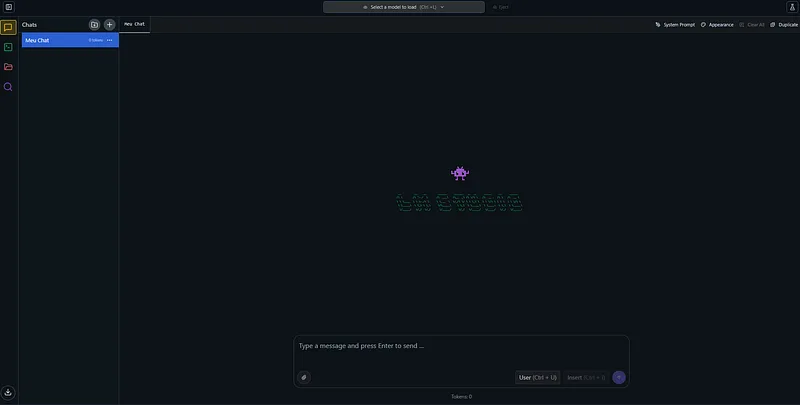
After you’ve downloaded LM Studio, you should see a screen similar to this image:
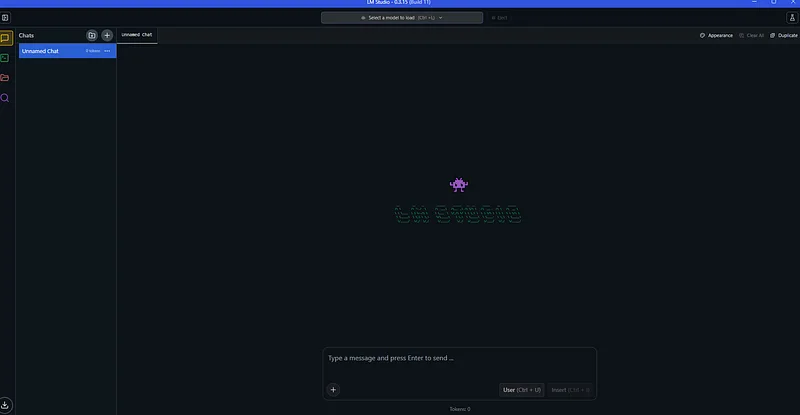
Now, you can click the Magnifying Glass on the left side of your LM Studio, in Discover.
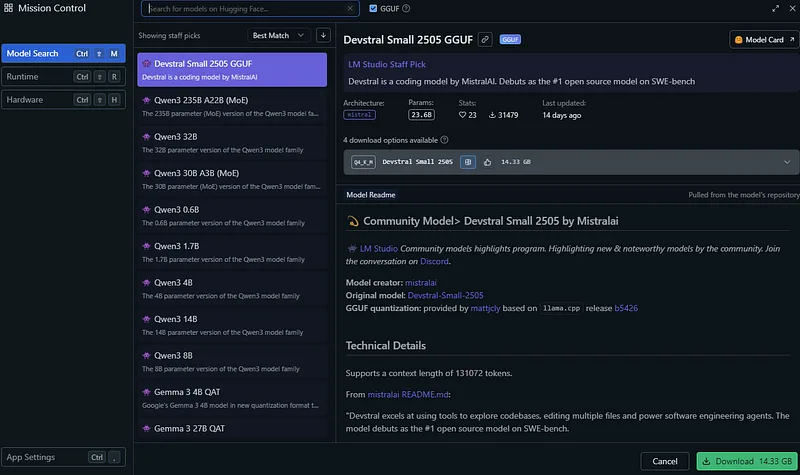
Here you can already choose your model. But before doing that, something important for you to use LM Studio in the best way possible is knowing which model you can run on your machine.
Two important points you have to check:
1- The size of the model, that is, the number of parameters it has
2- The amount of VRAM you have on your machine.
3- The model quantization (how many bits per weight, for example. Q4 = ≈4 bits; Q6 = ≈6 bits). The fewer bits, the less VRAM, but you also lose quality.
For example, in my setup I use an AMD Graphics Card with 16 GB of VRAM. You can already do some cool things with that, but I can’t run a more recent LLAMA Scout model without having a considerable bottleneck and having to wait more than 5 minutes for responses. The estimate is approximately 0.75 GB of VRAM for 1B parameters (for Q4/Q5 models; in fp16 the estimate goes up to ~2 GB/B). But to make your life easier, here is a list of models for the computer you have.
Without a Graphics Card:
Less than 4 GB of RAM: **TinyLlama-1.1B-Q4/ SmolVLM-256M-Q4
**8 to 16 GB of RAM: Phi-3-mini-2.7B-Q4, Gemma-2B-Q4
With a Graphics Card:
4 GB of VRAM: Mistral-7B-Instruct-Q4_K_M
8 GB of VRAM: **Llama-3–8B-Q5_K_M
**16 GB of VRAM: Llama-3–8B-fp16, Llama-2–13B-Q5_K_M
Above 16 GB of VRAM you have many more possibilities, also remembering that LLMS and Diffussions models were for the most part trained with CUDA, that said, they tend to work better on NVIDIA cards. Mine currently runs QWEN30BA3B, it’s a very interesting model, but it already bottlenecks even with 64 GB of RAM and 16 GB of Video!
I’ll assume that if you got this far, it means you’ve already chosen your model, so let’s go to the Runtime part. Some of the “Runtime Extension Packs” already come installed by default when you install your LM Studio. From the experience I had, for AMD always use ROCM(Not always on Windows, okay). It offers superior performance on AMD cards, while for NVIDIA use CUDA. Always use the latest version.
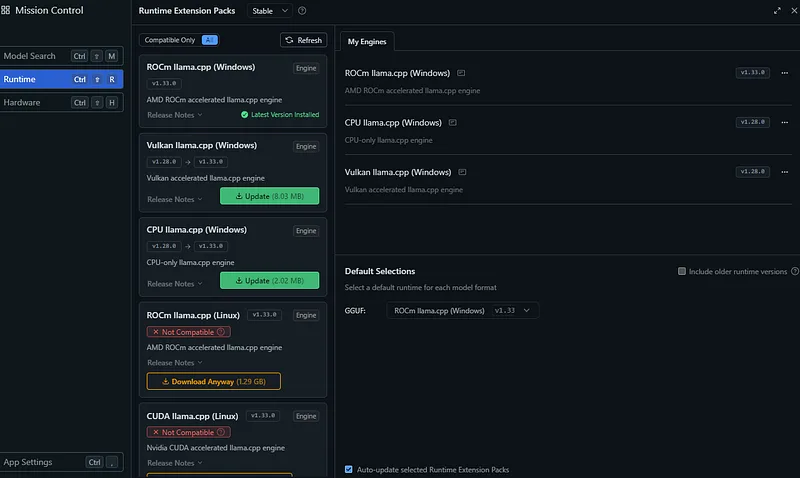
Important Point: Linux performs much better than Windows. So know that when using Bill Gates’ system, you will need more VRAM to run something than on Linux.
Alright, you’ve already chosen the model, you’ve already defined the execution mode, it’s worth giving the Hardware tab a Check.
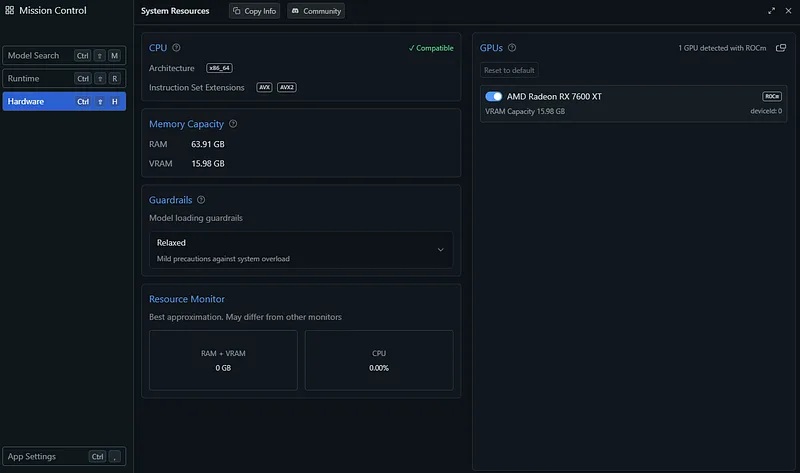
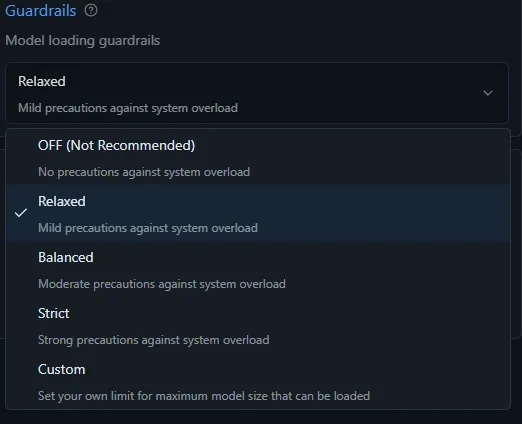
These are the settings of my current computer, the more VRAM the greater the model capacity. The only important setting is GuardRails. It’s interesting for you to select the option that best fits your standard, remembering that if you choose the off option (disabled), there is a possibility that you may freeze your computer due to the amount of VRAM used by the model.
Perfect, you already have all the settings, from now on you can already do some tests on your machine in the Chat screen! Just click to select your model. Important, if you want to use LM Studio’s APIS, leave Developer mode enabled on your bottom bar.
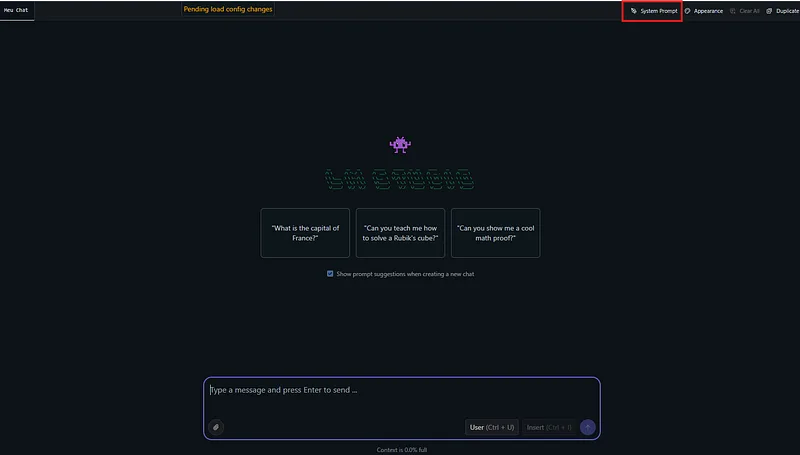
We also have the System Prompt, which will stay on your upper left bar, and it will serve as the basis for how you want your LLM to work.
Now you can already run your LLM, but what if you want to optimize your model’s parameters, how can you do that?
There are two options:
Every time you load the model, you will change these parameters.
You leave the configuration already prepared for that.
For the first case, when selecting the model the option “Manually Select Model Parameters” will appear for you, while for the second, after selecting the model, click the gear next to the loaded model. You will see a screen like this:
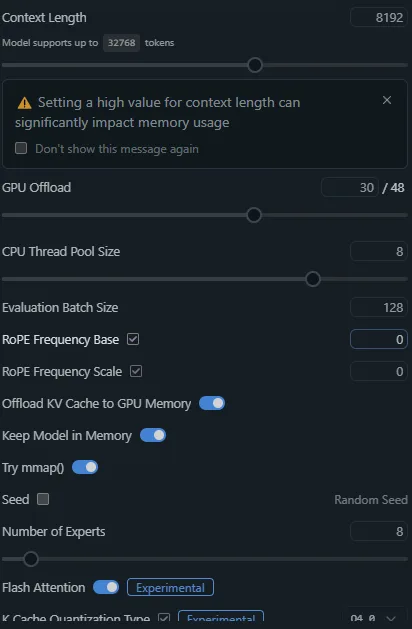
Perfect, but you must be asking yourself, what do these parameters mean?(you are, aren’t you?) Let’s go to a brief explanation of each of them.
Context Length (Context Window) : Defines how many tokens fit in the prompt + the LLM’s response before the model starts to hallucinate/forget.
Each model has a specific amount, the model that is loaded can handle up to 32000 Tokens. LLAMA 4 up to 1 Billion. Remembering that the more Tokens, the more VRAM you consume
GPU Offload: How many layers of model weights will stay on the GPU (Graphical Processing Unit). The rest goes to the CPU/RAM
CPU Thread Pool Size: Number of Threads the model will use. The rule is to use the number of physical cores you have. Using virtual cores changes almost nothing in the result, it can even get in the way.
Evaluation Batch Size: Defines the size of the block of tokens processed per step when the model reads the prompt. Larger blocks → faster Prefill; but each increase consumes more VRAM. In response generation (one token at a time) this parameter has almost no influence.
ROP Frequency Base/ ROP Frequency Scale: Useful if you are thinking about doing Fine Tuning in your model or extrapolating its context window. Frequency Base defines the angular frequency θ₀ used in this fun formula here θ(i)=base^(-2 i/d), also called Rotary Positional Embedding. The higher the number, the better in larger contexts, since the model will be able to visualize more distant positions before it could not before repeating the same search process. Frequency Scale, on the other hand, divides the logical position by a constant factor before applying it to the RoPE function, “stretching” the ruler the model uses to measure distance between tokens.
OffLoad KV Cache in Memory: Stores the keys/values of each token on the GPU instead of RAM. It greatly speeds up Attention, meaning the response will be much, much faster.
Keep Model in Memory: Keeps the model in memory after each request, nice if you make many calls, use APIS, and don’t care about energy consumption.
Try mmap(): Improves model initialization by loading only the most accessed parts. Works better on Linux
Seed & Random Seed: Nice if you want to fix some type of response from the model. Otherwise leave it on Random Seed.
Number of Experts: How many specialists the router (also known as the Gate) can activate to generate each token. Fewer experts = lower consumption, slightly shallower or simpler responses; More experts = More VRAM/FLOPs, a chance of richer, better text. If you landed here out of nowhere, use the default value, otherwise you can take a look at this Thread on Reddit here.
Flash Attention: Activates an ultra-compact kernel that combines the three stages of the attention mechanism, optimizing it. This reduces memory reads and, as a bonus, cuts VRAM usage by ~20–30 % during generation, especially if you are using CUDA with Linux. But for now support appears not to be 100% on Windows
K Cache Quantization Type/ V Cache Quantization Type: These two menus define how LM Studio stores the KV-cache (the keys/values that keep the “history” of your conversation) on the GPU.
FP 16≈ (default) — Zero loss, uses more memory.
FP8 / bf16-mix≈ 35% — Indistinguishable in most prompts.
NF4 / Q4–0≈ 45% — Small inaccuracies only in contexts > 32 k.
Q2_K≈ 60 % — Can introduce repetitions or “jumps” in reasoning in long texts.
Quantizing the KV-cache is like swapping a hardcover notebook for a thin binder: it takes up less space in the backpack (VRAM), but if it gets too thin some pages may tear (Your model will lose precision). Start with Q4–0 and keep changing it on your GPU until you find a good value for your use.
Now that you know how each parameter works, or at least have a slight reference for them, you can configure your model in the best way possible! Happy studying!
Useful Links
- Official documentation: https://lmstudio.ai/docs/app
- Discussion about RoPE scaling: https://github.com/ggerganov/llama.cpp/issues/2402
- **Memory Optimization in LLMS:
**https://medium.com/%40tejaswi_kashyap/memory-optimization-in-llms-leveraging-kv-cache-quantization-for-efficient-inference-94bc3df5faef - Maximum number of experts per Token:
https://www.reddit.com/r/LocalLLaMA/comments/18la6ao/optimal_number_of_experts_per_token_in/ - QWEN 30B A3B Model:
https://huggingface.co/Qwen/Qwen3-30B-A3B